Photo & Graphics · Guide
How to Restore Old Faded Photos on Your PC
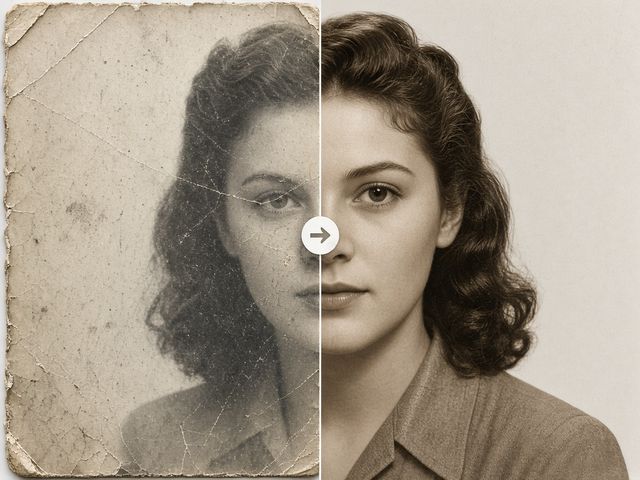
Old prints fade, yellow and collect scratches, but a good scan and a few careful edits can bring back a lot of detail. This guide uses Paint.NET; the same steps work in GIMP with slightly different menu names.
Step-by-step instructions
-
Scan and crop
Open the scan in Paint.NET. Use Rectangle Select around the photo and Image → Crop to Selection to remove the scanner bed. Straighten with Image → Rotate or Layers → Rotate / Zoom if needed.
-
Fix overall contrast
Open Adjustments → Auto-Level for a quick correction. If the result is too strong, undo and use Adjustments → Levels: drag the input black and white points to where the histogram starts and ends.
-
Remove the yellow cast
In Levels, uncheck the color channels one at a time and adjust the blue channel up slightly, or use Adjustments → Curves in RGB mode. For black-and-white photos, Adjustments → Black and White removes the color cast completely.
-
Clean dust and small specks
Apply Effects → Noise → Median with a small radius (1–2) to a selection around dusty areas, not the whole photo, so faces stay sharp.
-
Repair scratches and creases
Choose the Clone Stamp tool. Ctrl+click a clean area next to the scratch to set the source, then paint over the scratch in short strokes.
Zoom in to 200% and change the source point often so the repair does not leave visible patterns.
-
Sharpen gently and save
Apply Effects → Photo → Sharpen with a low amount. Save the restored version as PNG for archiving and export a JPEG copy for sharing.
Restoring color photos
Faded color prints often lose cyan and blue first. Work in Curves with individual channels, and compare against something in the photo that should be neutral, such as a white shirt or grey wall.
Frequently asked questions
Can software restore a completely torn photo?
Small tears can be cloned over. Large missing areas need manual reconstruction, which takes time and skill.
Should I use AI restoration?
AI tools can be impressive but may invent facial details. For family archives, keep the manual restoration and label AI versions clearly.
Software used in this guide


Related guides
Guide · 2 min read
How to Improve Blurry or Low-Quality Photos on Windows 11
Sharpen slightly soft photos, reduce noise and improve contrast with realistic expectations.
Guide · 2 min read
How to Resize Multiple Photos at Once on Windows 11
Batch-resize photos for email or the web with PowerToys Image Resizer or XnConvert.
Tutorial · 2 min read
Make a Background Transparent in Paint.NET
Remove a white or plain background with the Magic Wand and save a transparent PNG.